OpenID Connect login
The organization is not a new and modern invention or phenomenon. As in real-world organization is viewed as a group of persons formed to seek certain goals. Ever since the dawn of civilization, people have always formed organizations to combine their efforts for the accomplishments of their common goals. Following the same notion, the NBG Developer portal gives this opportunity to the admin user to create a digital organization in order to invite his community and collaborate for the same target.
The user can navigate and select the APPS module
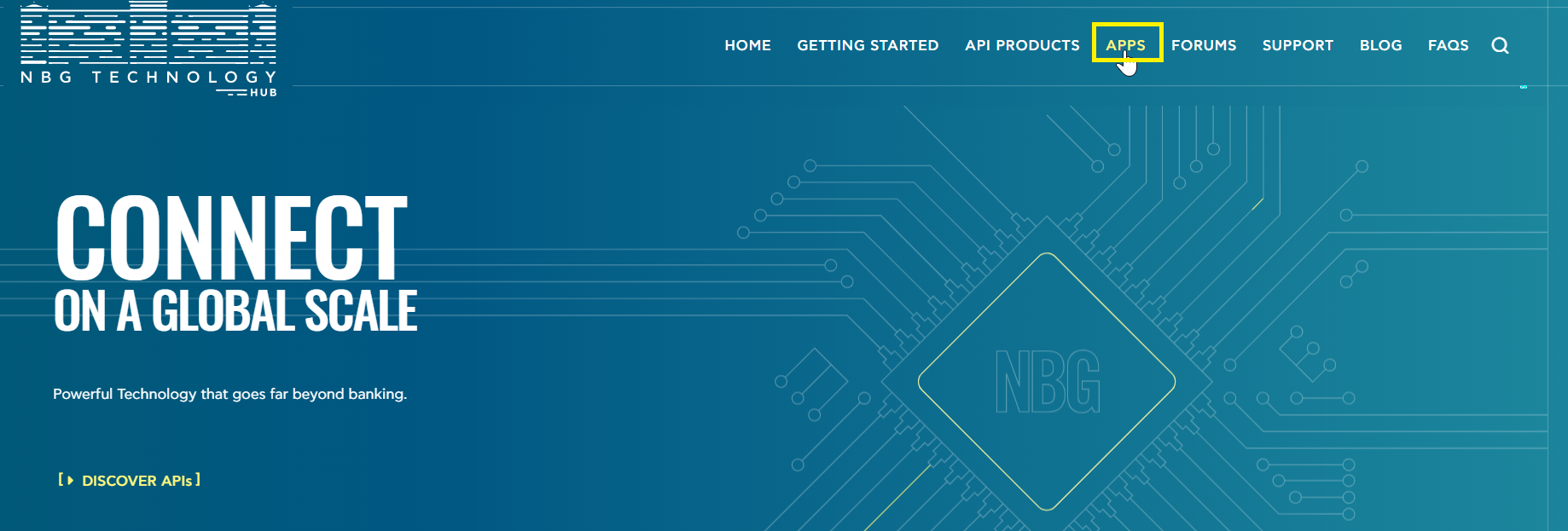
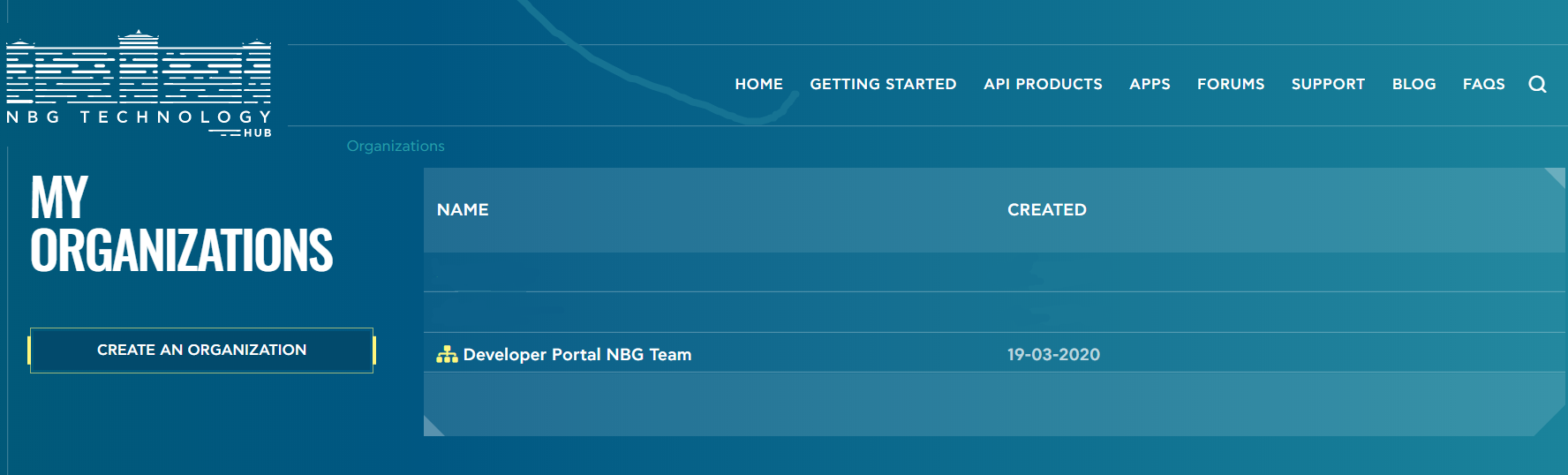
In this section, the user intends to create Organizations.
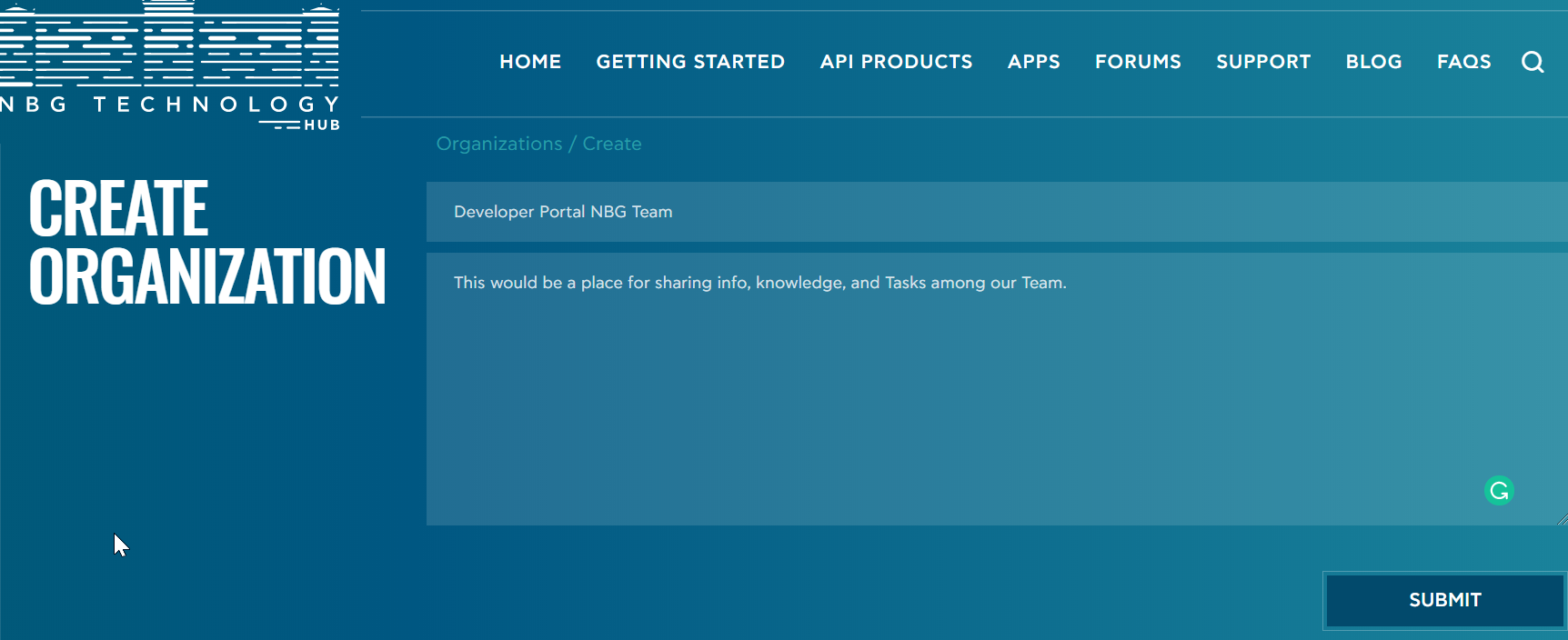
Create Organization
The main idea behind the “organizations” feature is to provide a way to easily share apps, manage roles and access rights among users of the same team.
For instance, when an admin user creates an organization practically means that creates a virtual space for a team of users. It can be visualized as an organized schema that allows users to acquire:
- Info of all the APIs that the organization has subscribed to.
- Work responsibilities overview.
- Effectively share organization information.
- Create a visual employee directory.
Note that by default, the system creates an organization named as your username. You can use this default organization, or create a new one. Inside your organization, you can create your App.
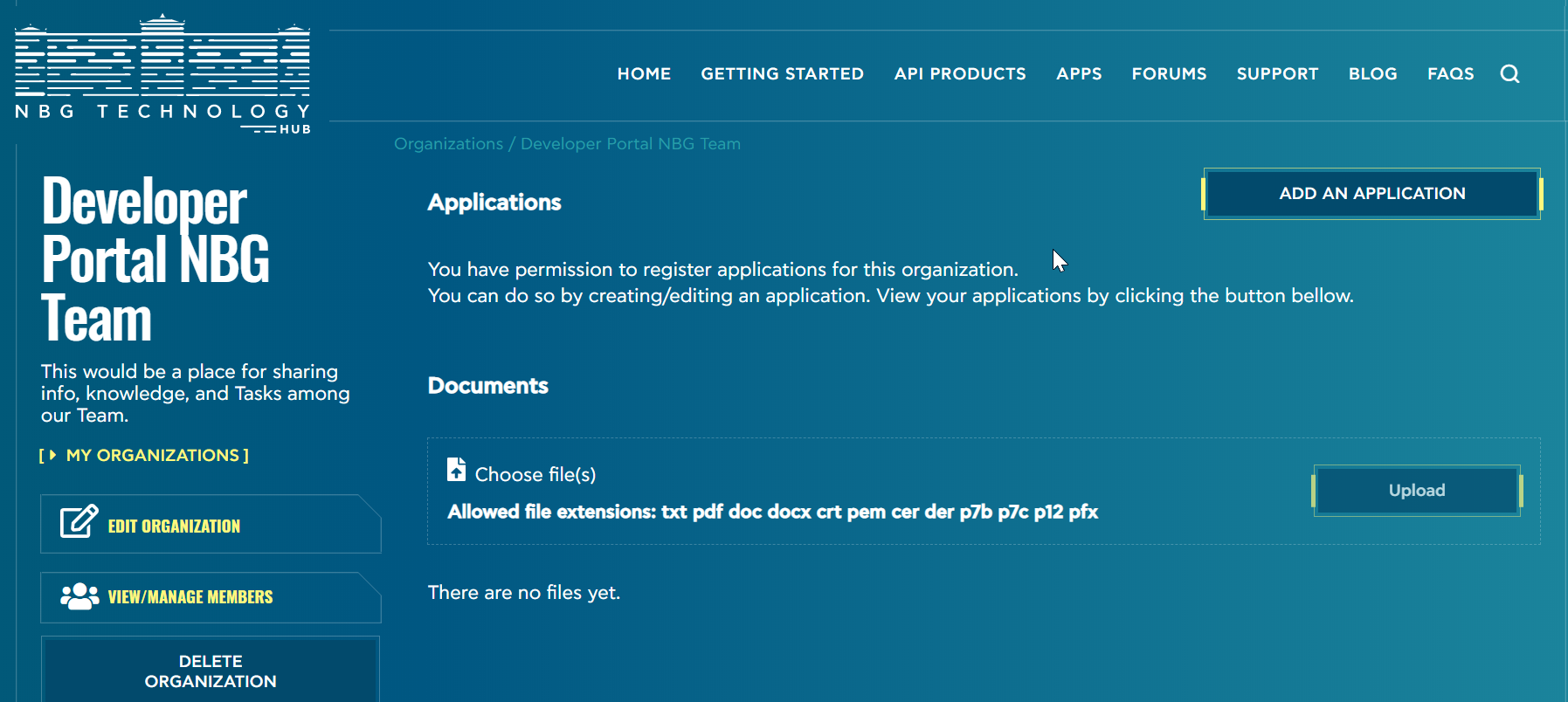
Edit organization
The system enables the user to make changes within his organization by clicking on “Edit organization” button.
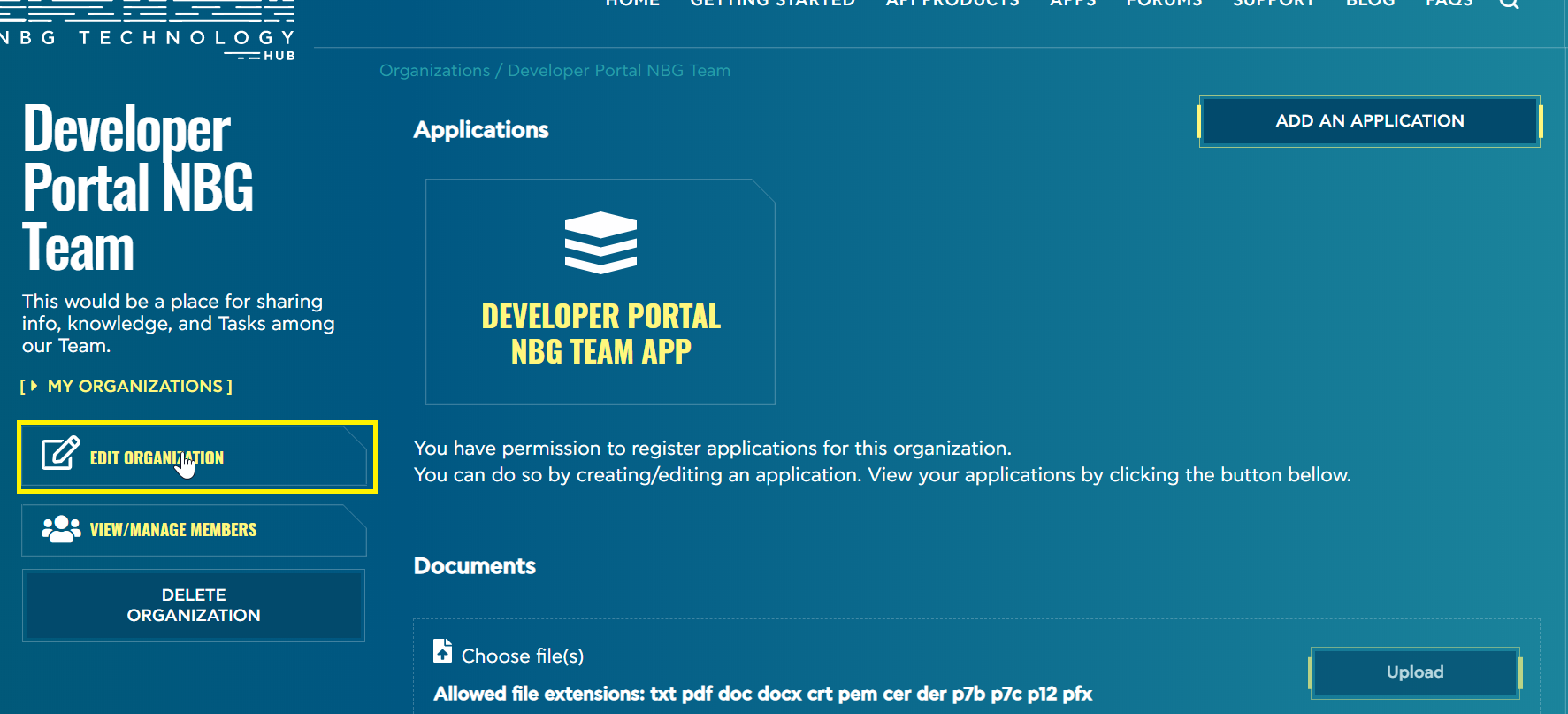
Then the screen below appears:
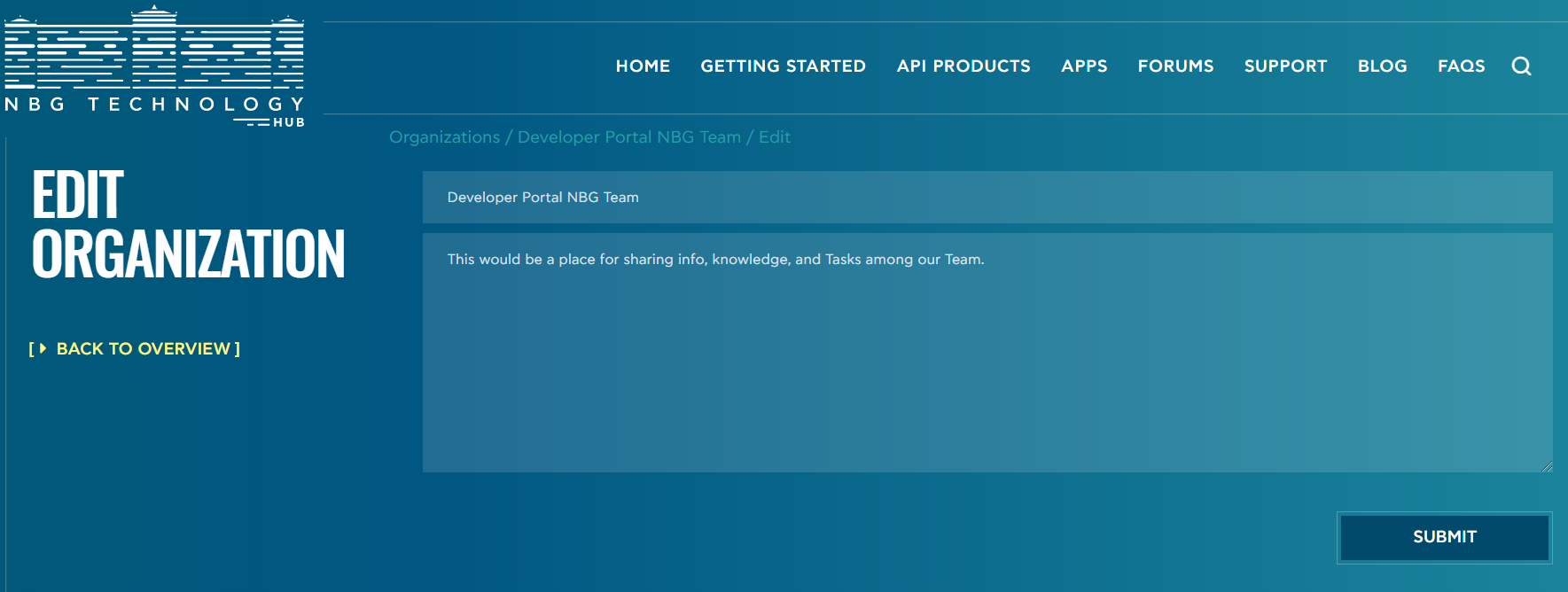
The user can easily make updates within the filled fields.
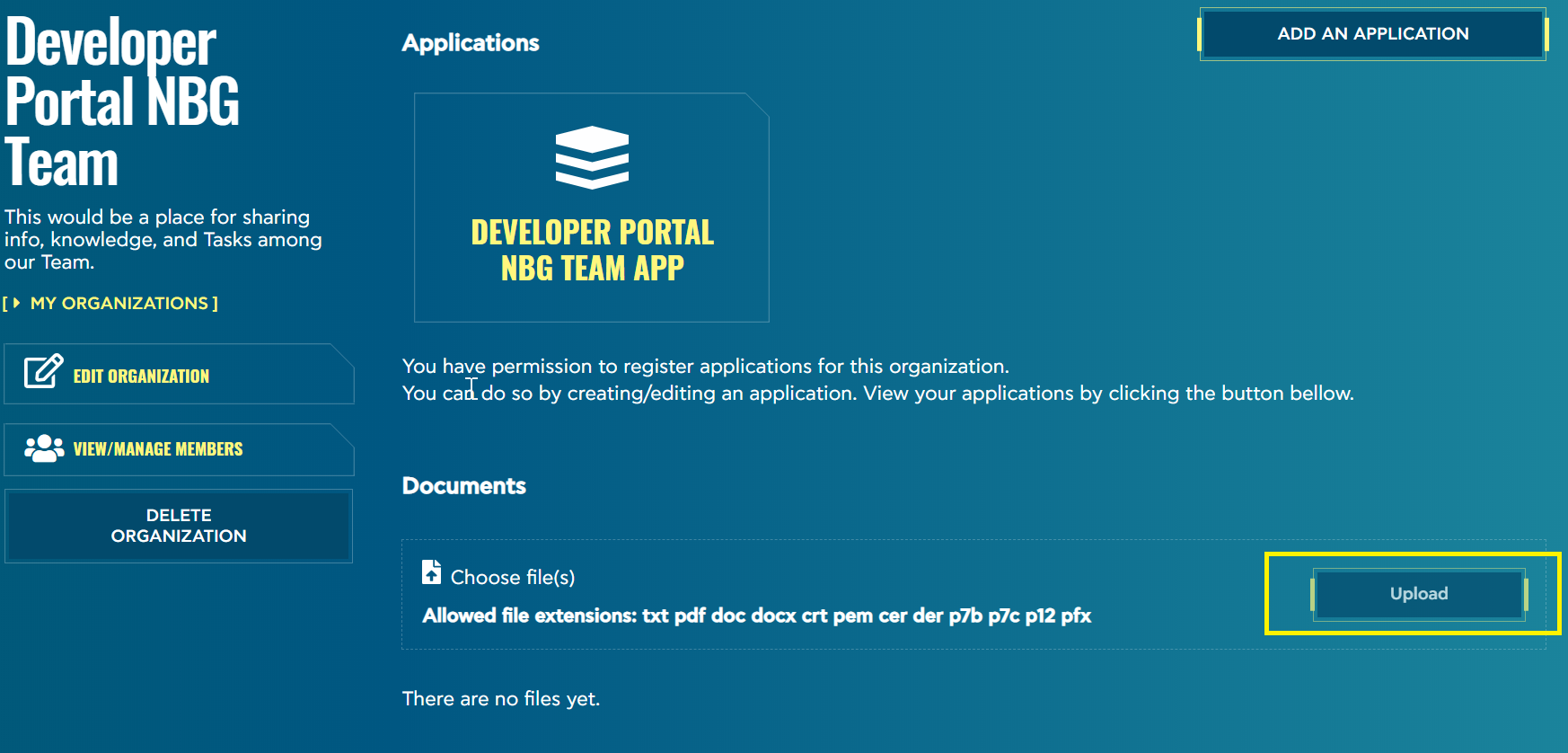
Upload Document
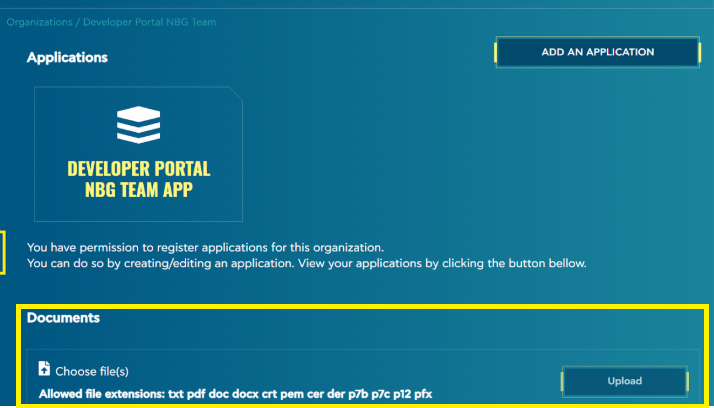
A developer or a legal user of the organization has the right to upload legal documentation (eg NDAs, terms signed, API certificates, licenses) that have to be shared with NBG. This feature works as a library that may contain useful documentation.
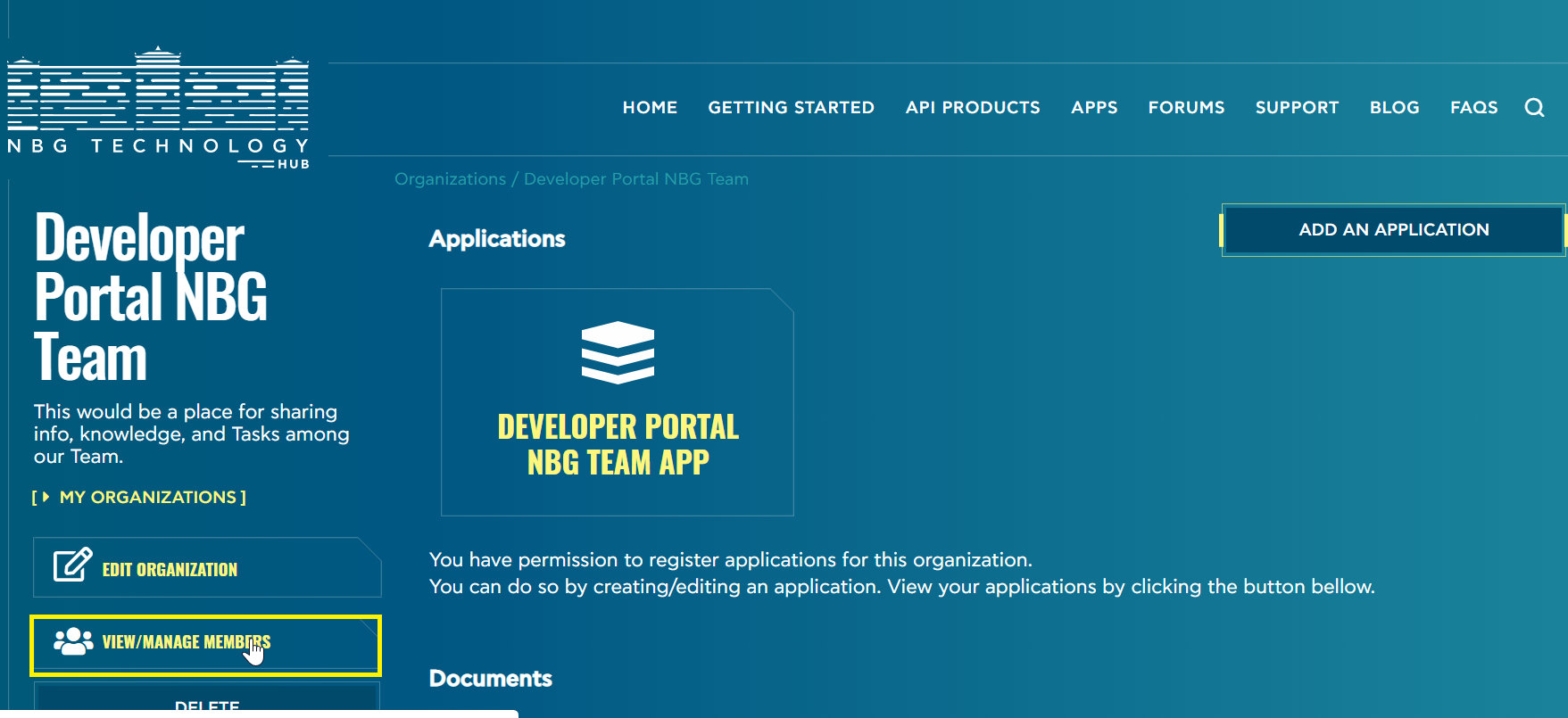
View manage members
The admin user has the ability to manage memberships by clicking on View/Manage users Button.
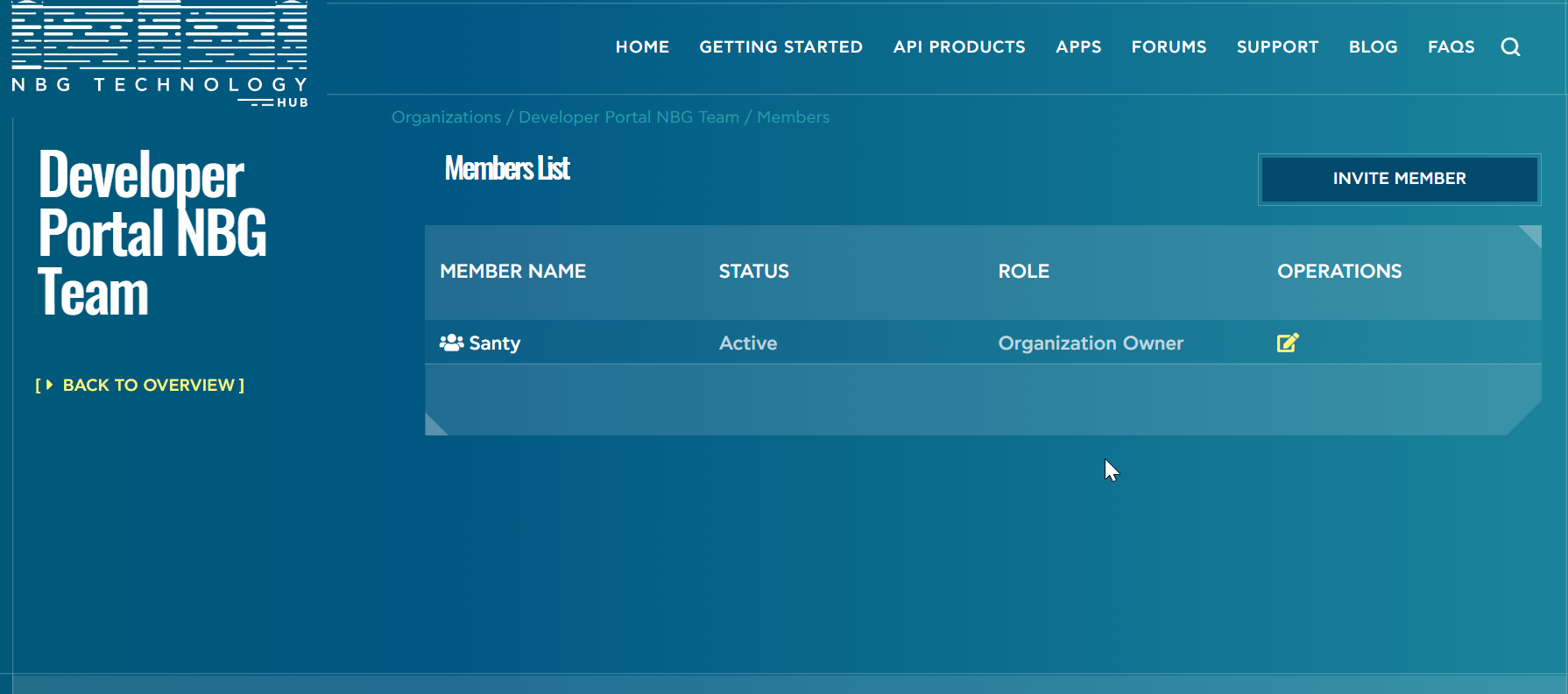
At this point, the admin user by clicking on “Invite member” can also invite other users to join his organization and collaborate with its team members.
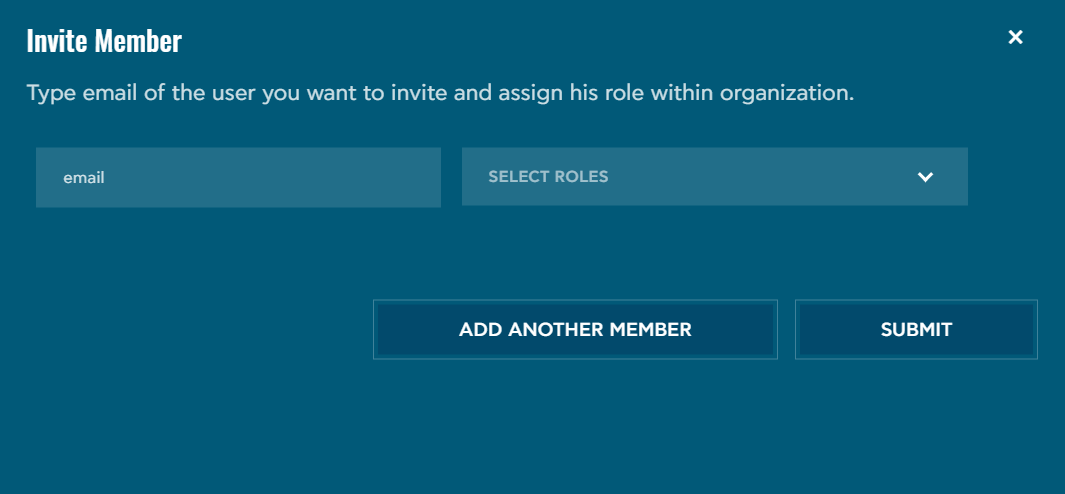
The organization owner can add members by their emails and then allocate specific roles to each one. Note that each role has specific authorization rights.
Distribute Roles
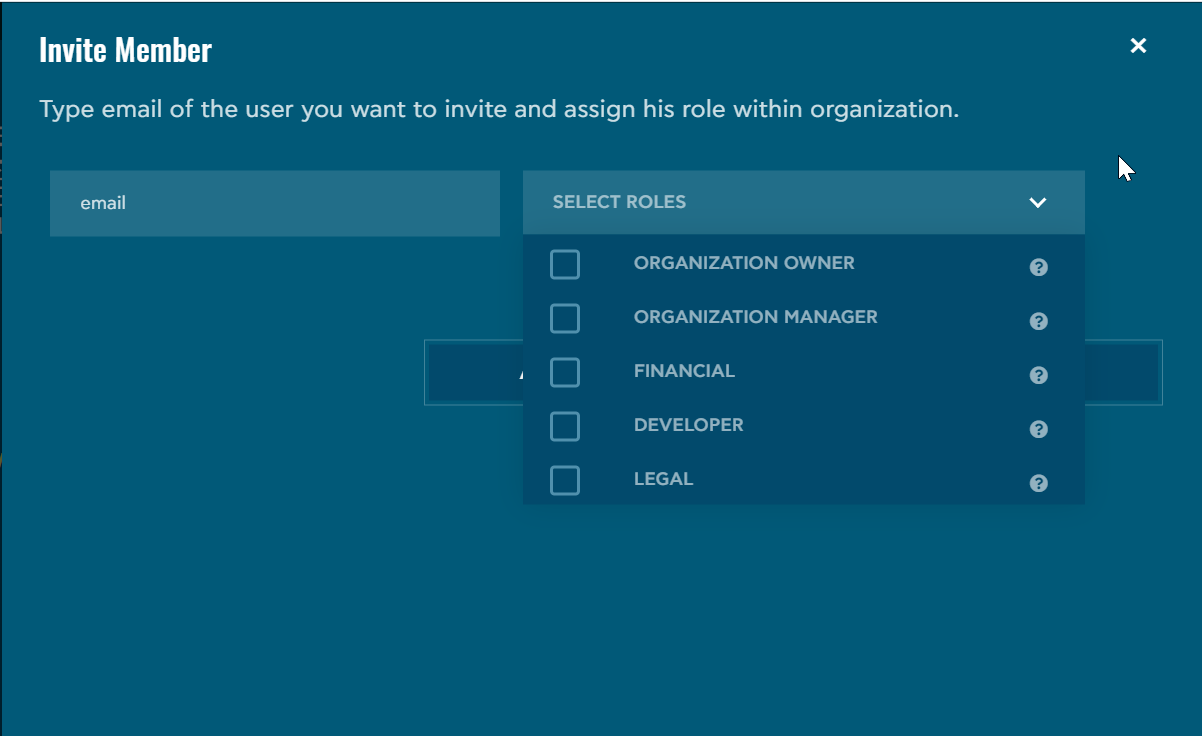
Admin user can assign specific roles to each invited member depending on the rights that wants to share.
The available roles are presented below:
- Organization owner
- Has access to all organization actions
- Financial
- Can view organization applications and API consumption statistics
- Developer
- Can create/edit application and upload documents and files
- Legal
- Can view applications and upload documents and files
Delete Organization
Delete functionality deletes permanently the created organization.
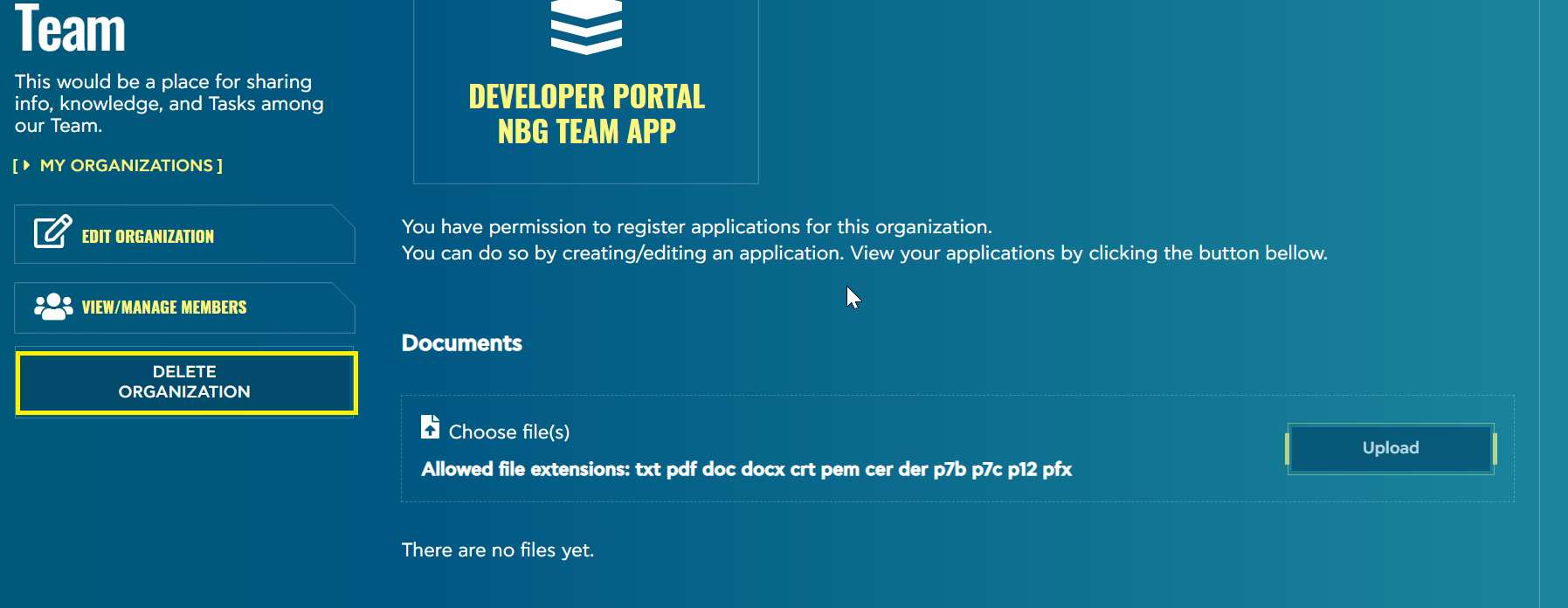
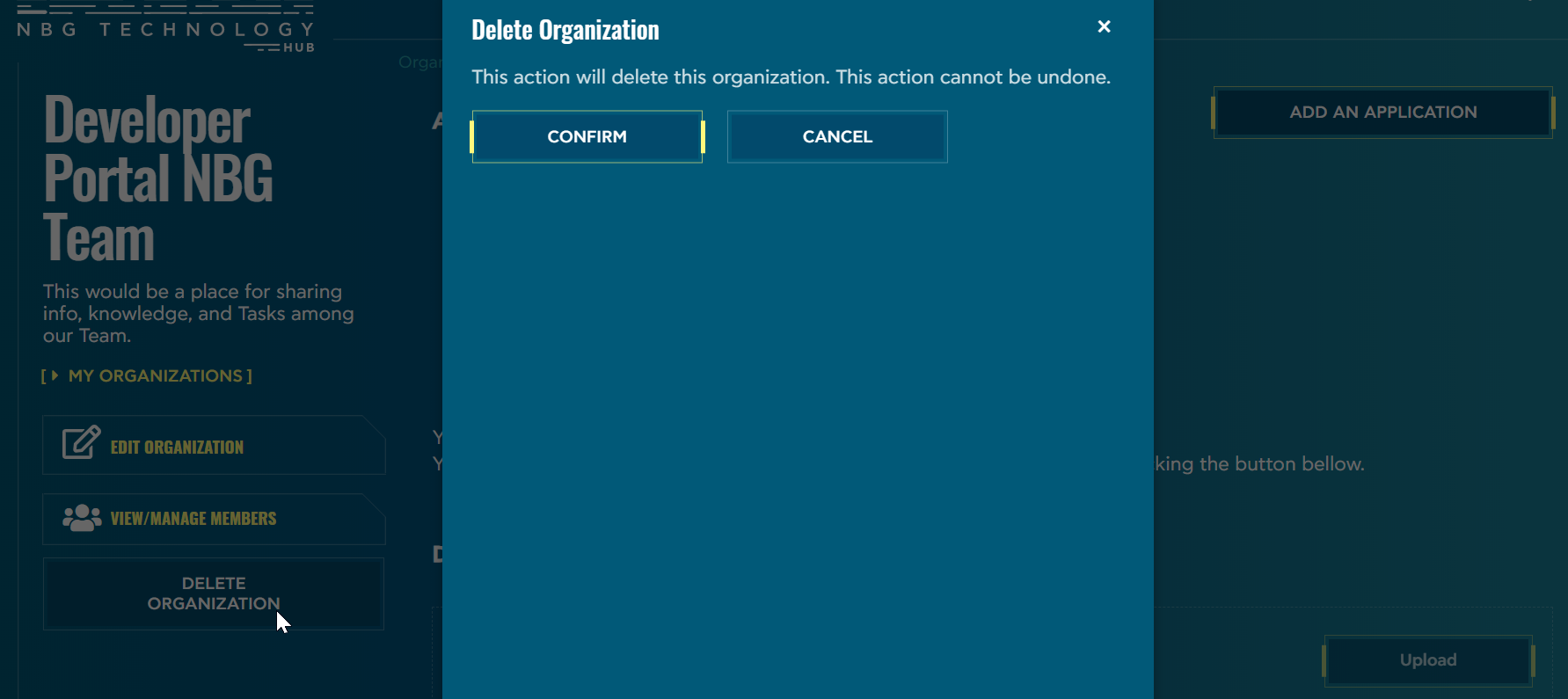
For security reasons, the user is asked to confirm his delete action.
Add an Application
Following the Organization creation, the admin user can now add Apps that the team wants to work with. So, by clicking on “Add an Application” a new screen appears where you must fill all the required fields.
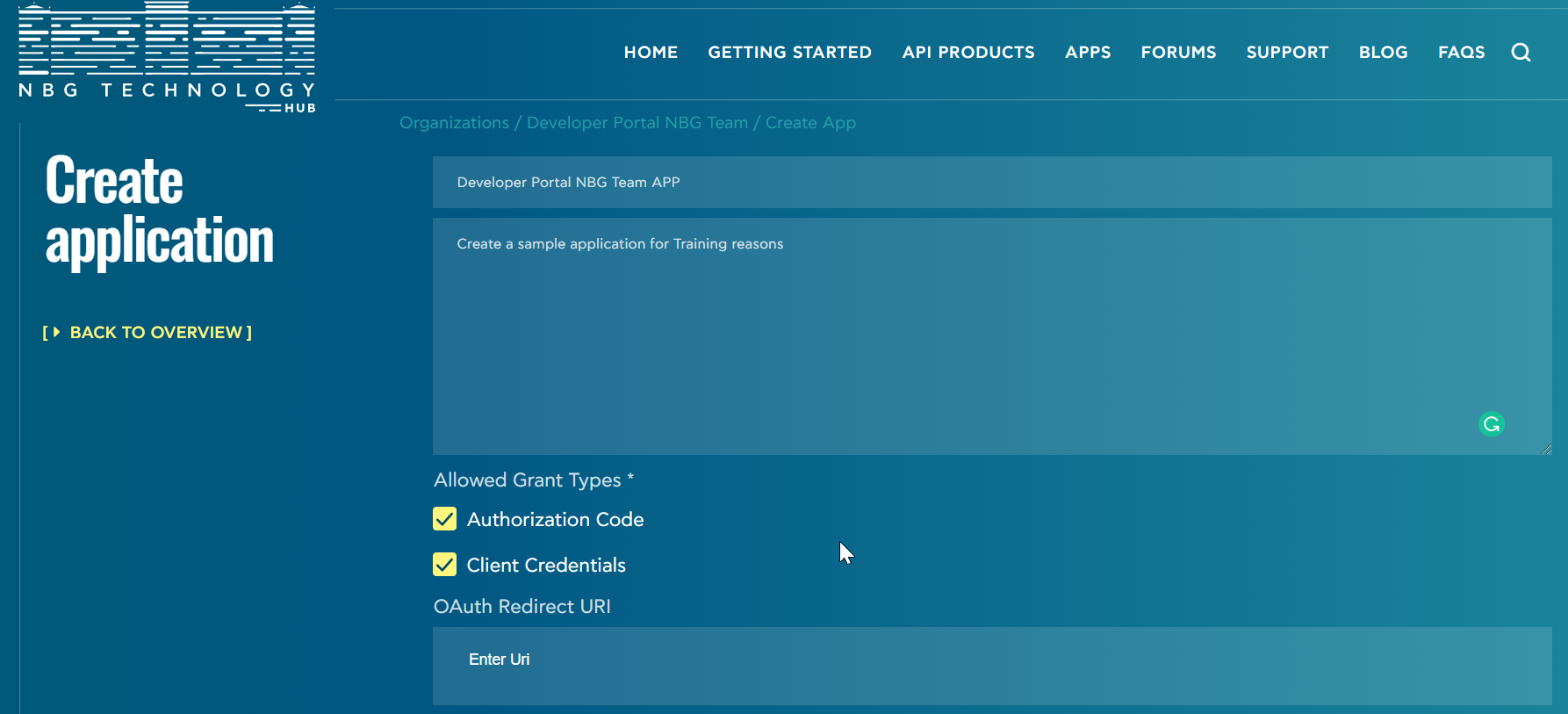
Important: You should check the Authorization Code and enter your app’s OAuth Redirect URI, which is the URI that NBG will redirect the user after logging in.
By submitting this form the admin user receives the Client Id and Client Secret pair.
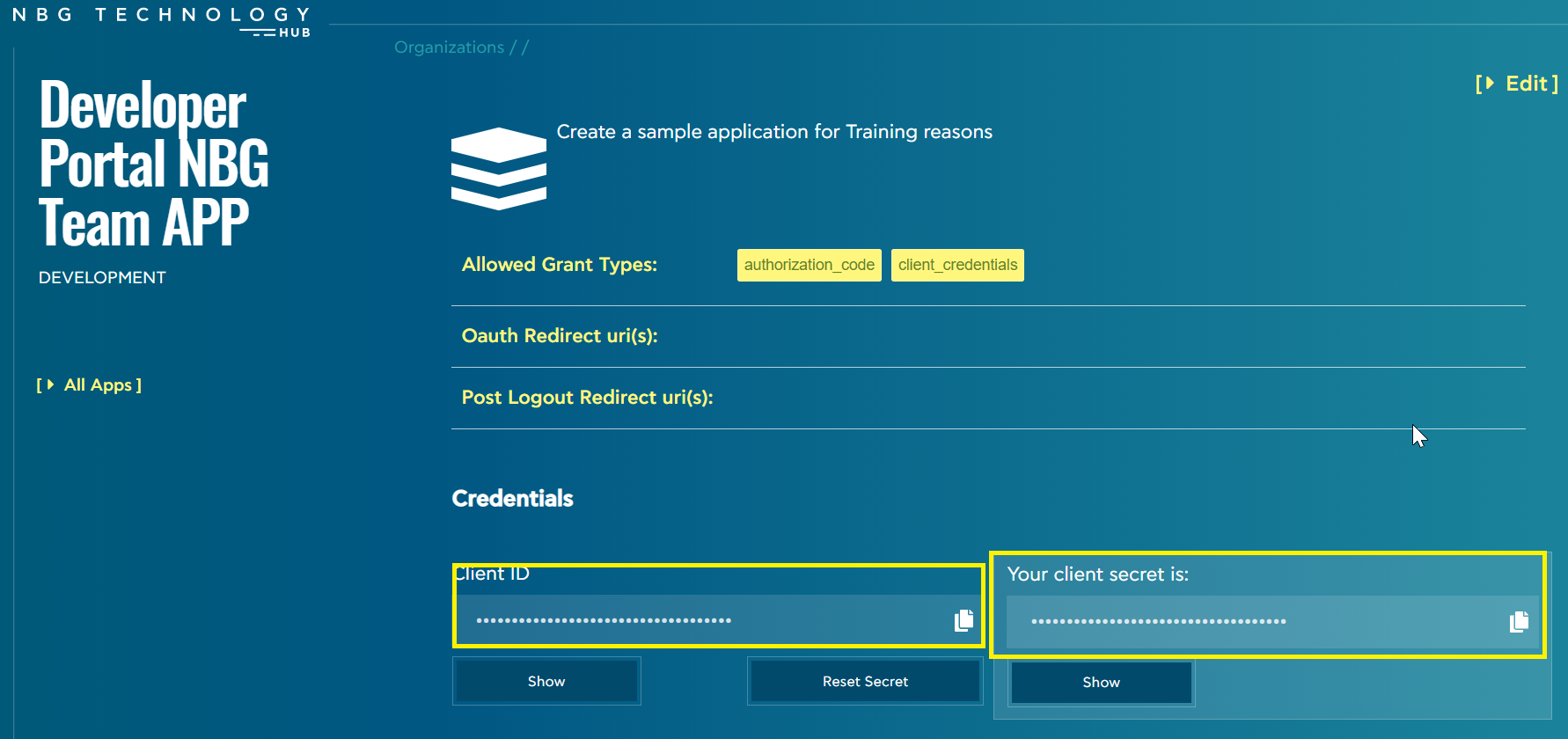
Important: The Client secret will not be visible again, so if you lose it you should return here to Reset your Client secret and obtain a new one. For more information on how to obtain access tokens read the section Obtaining access tokens.
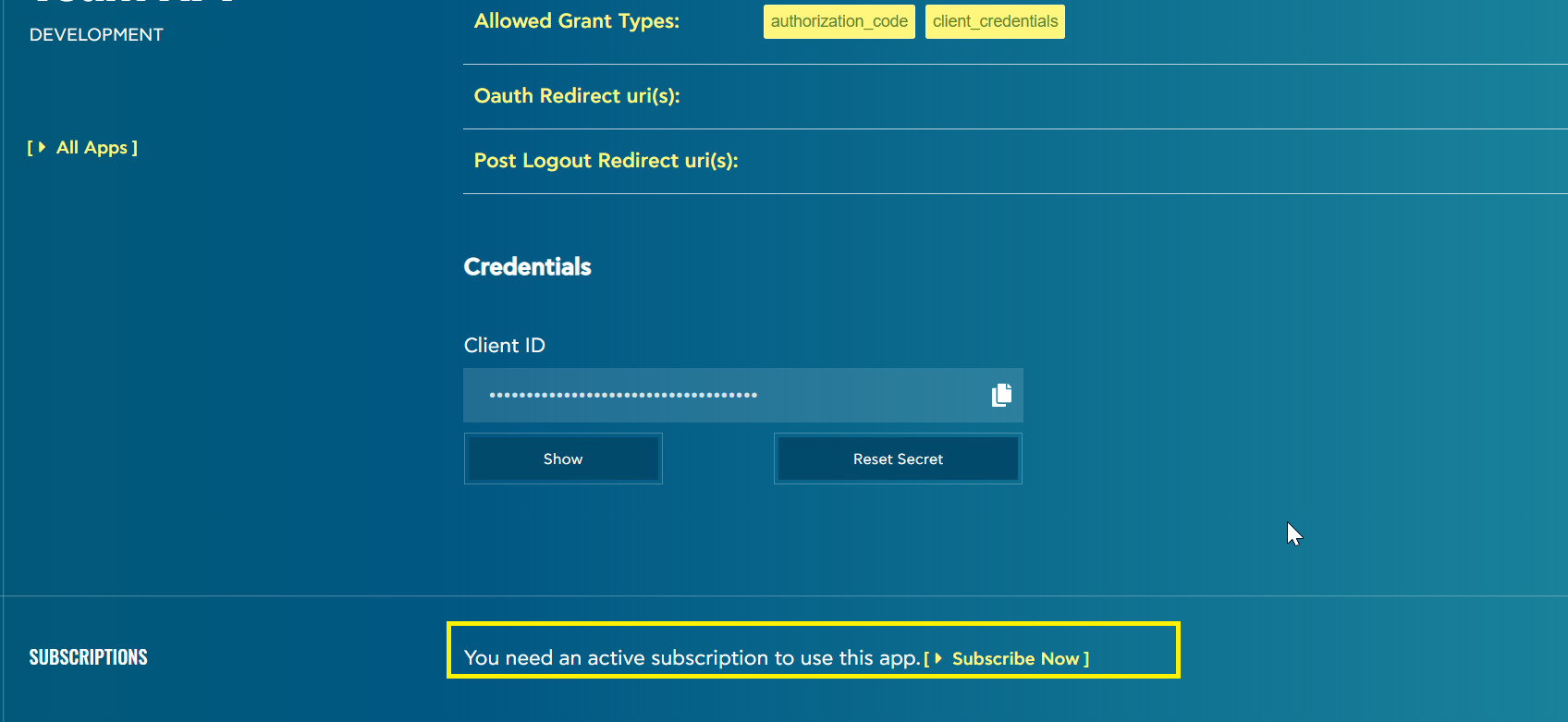
Then the user has to click on “Subscribe Now” in order to complete the “Add an Application” procedure.
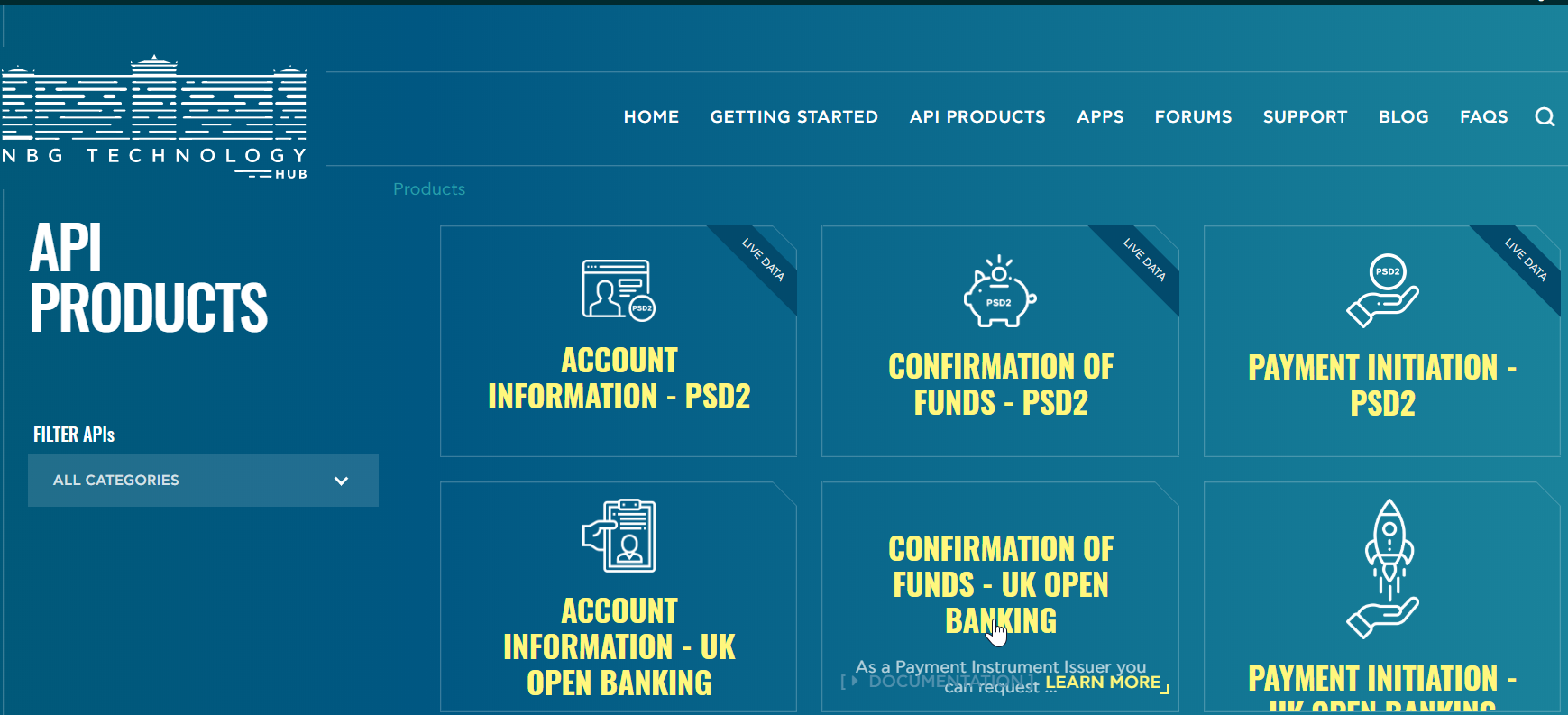
The system will redirect the user to the “API Products” menu in order to choose the API of his preference.
- Log in to post comments